
If you have installed the HPE Data Protector (DP) Cell Manager (CM) as well as the client on a Windows Server 2008 machine. After making some configuration changes you need to restart the DP services on the Cell Manager (CM). You can use the below methods to restart the DP services:
Restart the HPE DP services through the command line:
You can follow the steps given below to restart the HPE Data Protector (DP) services.
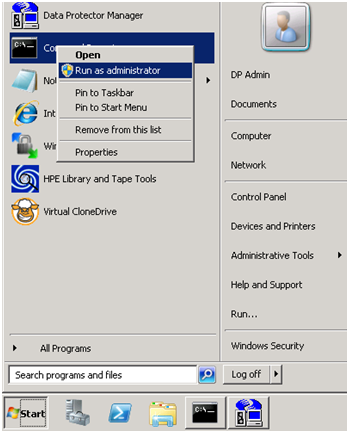
- Run the command prompt as administrator.

Run CMD as Administrator
- First, check the status of the DP services.
C:\Windows\system32>omnisv status
ProcName Status [PID]
===============================
crs : Down
mmd : Down
kms : Down
hpdp-idb : Down
hpdp-idb-cp : Down
hpdp-as : Down
omniinet : Down
Sending of traps disabled.
===============================
Status: At least one of the Data Protector processes/services is not running. - If services are running then stop the services first using the below command
C:\Windows\system32>omnisv stop
HPE Data Protector services successfully stopped. - Now start the services using the below command
C:\Windows\system32>omnisv start
HPE Data Protector services successfully started. - After starting the services check the status
C:\Windows\system32>omnisv status
ProcName Status [PID]
===============================
crs : Active [5640]
mmd : Active [5564]
kms : Active [5044]
hpdp-idb : Active [5308]
hpdp-idb-cp : Active [3400]
hpdp-as : Active [2720]
omniinet : Active [2008]
Sending of traps disabled.
===============================
Status: All Data Protector processes/services up and running.
Restart the HPE DP services from the list of Services:
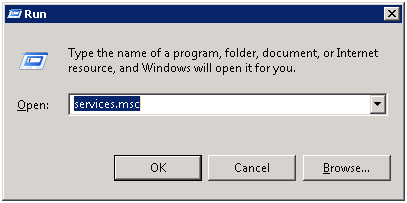
- Open the Run window by using the Windows+R key combination.
- Type the services.msc and hit the enter button.
List of services running on windows system
- You will see the list of services running on your system. Identify the Data Protector (DP) services.
HPE Data Protector Services
- Select a service and you will see the option on the left side to stop or start the selected service.
- Do it for all the Data Protector (DP) services.

Note: I performed these steps and commands on Windows server 2008 for HPE Data Protector A.09.08
Related Posts
- [12:1166] Internal Database error. The IDB services are most probably not running.
- HPE DP: RMAN Backup Failed after Changing the SYS User Password of Oracle Database
- How to Check the HPE Data Protector Version
- How to Check Patch Level of a HPE Data Protector Cell Manager
- How to Check Patch Level of a HPE Data Protector Client
- Unable to add HP-UX/Linux client in HP Data Protector
- How to Restart the HPE Data Protecter Services
- How to Check HP LTO Tape Drives on Linux DP Clients